What Standby Actually Does
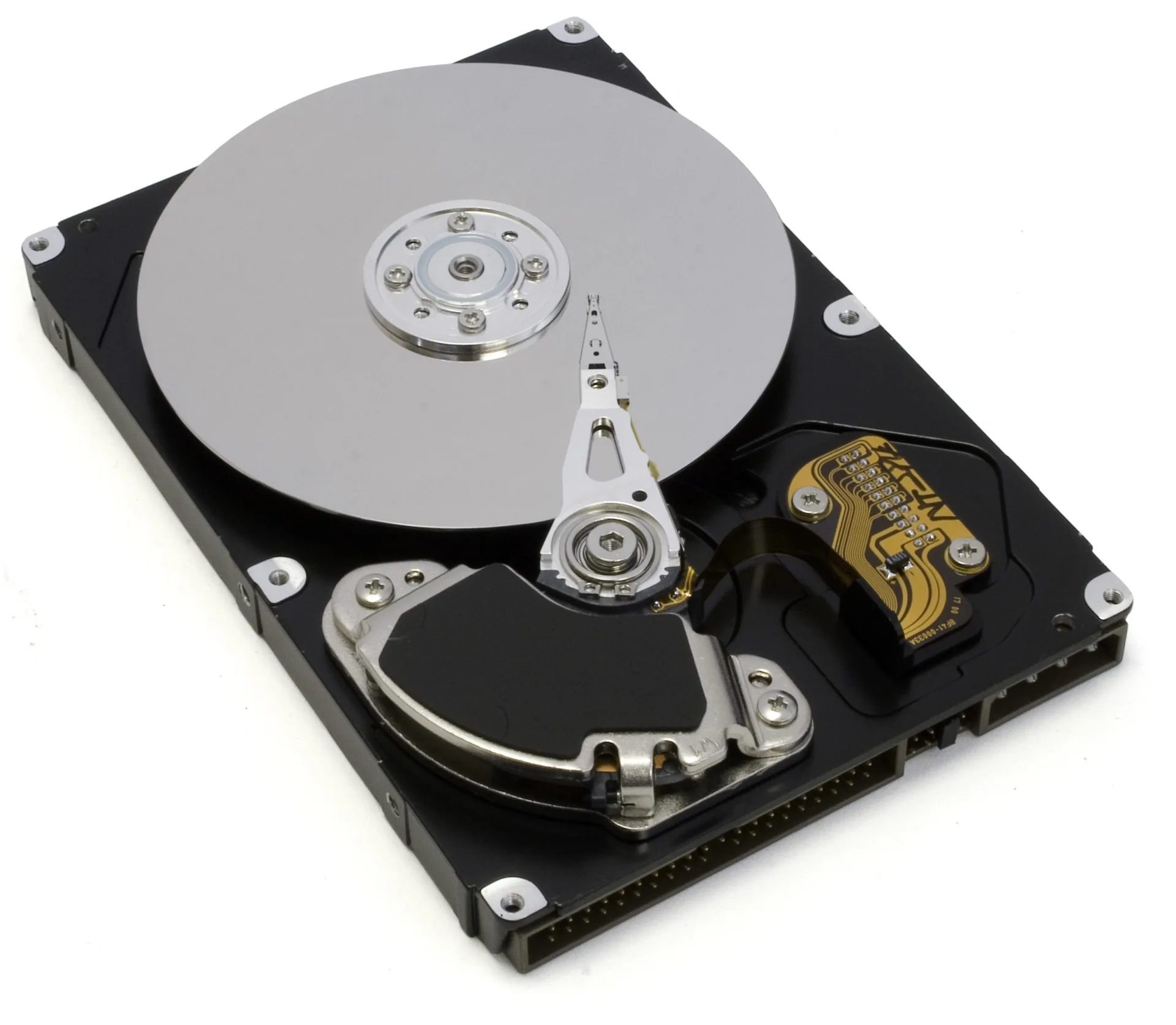
An active hard disk keeps its platters at full rotational speed even when no files are moving. Standby parks or unloads the heads and stops the spindle motor. The drive remains connected and can wake automatically when the operating system asks it to read or write.
The timer starts after the last observed disk I/O. A new request before the deadline resets it; a request after the disk has stopped wakes it. On a pool, one filesystem action may touch several member disks, so a storage server should apply and observe the policy across the complete vdev rather than treating each disk as an unrelated appliance.
Power, Heat, Noise, and Latency
The savings are real, but model-specific. As one representative example, a modern Seagate Exos enterprise manual specifies about 6.64 W at average idle and 1.22 W in standby. That is roughly 5.4 W less per drive while asleep; eight similar drives could shed around 43 W. Those figures illustrate the scale, not a promise for every model. Check the manual for the exact drive in use.
Nearly all electrical power used inside a server eventually becomes heat. Lower spindle power therefore means less heat for the chassis fans to remove and usually less fan noise as well. It does not guarantee a particular drive temperature: airflow, neighboring drives, room temperature, and how long the disk stays asleep still matter.
The cost appears on the next access. A stopped disk needs seconds to reach operating speed, so the first file request is slower. A large pool may also create a brief power surge as several motors start. Systems should stagger spin-up where the controller and drives support it, and the power supply must be sized for the actual start-up load.
See the representative Seagate Exos Xz power specifications.
Does Standby Extend Drive Life?
There is no universal yes or no. Standby reduces powered spindle hours and operating heat, but waking adds a start/stop event and commonly a head load/unload cycle. Seagate’s PowerChoice documentation explicitly notes that power-state transitions contribute to load/unload counts, while current Exos-family manuals commonly specify a finite design rating such as 600,000 load/unload cycles. That rating is an engineering limit, not a scheduling target.
The practical goal is to avoid both extremes: do not keep truly cold archives spinning all year without reason, and do not use such a short timer that ordinary bursts make the disks cycle over and over. If a disk sleeps for hours, one wake is usually doing useful work. If it sleeps for two minutes and wakes again all day, lengthen the timer or choose Never.
Temperature is similarly nuanced. Google’s large field study found that activity and temperature correlated with failures less strongly than commonly assumed, and that the relationship changed across temperature ranges and drive ages. Cooling remains necessary and manufacturer limits still matter, but “every degree cooler always adds life” is not a sound rule.
- Seagate PowerChoice technology paper — power states and transition accounting.
- Seagate Exos SATA product manual — representative reliability and load/unload specifications.
- Failure Trends in a Large Disk Drive Population — Google’s field study of temperature, utilization, and failures.
Measure transitions, not intentions
A configured timer does not prove the disk sleeps. SMART polling, scrubs, indexing, log writes, snapshots, or an application touching pool metadata can keep resetting it. Observe real power state and load/unload growth for several days, then adjust.
Practical Timer Rules
Start from the workload, then tune from observed sleep/wake behavior. These are deliberately broad rules of thumb, not manufacturer requirements:
| Setting | Good starting point for | Watch for |
|---|---|---|
| Never | Busy pools, databases, media serving, latency-sensitive work, or a disk that wakes repeatedly throughout the day. | Higher continuous power, heat, fan demand, and noise. |
| 5 minutes | Very cold archives with known, long quiet windows and rare access. | Aggressive cycling from background jobs; use only after observing the workload. |
| 10 minutes | Cold storage that is accessed in short, infrequent sessions. A reasonable first experiment. | Increase it if accesses arrive just after the disks sleep. |
| 20–30 minutes | Bursty or mixed-use storage where nearby requests should stay within one active session. | Less sleep time, but usually fewer unnecessary wake cycles. |
| 60 minutes | Mostly-on storage with occasional long gaps, where wake latency is undesirable. | Savings appear only during genuinely long idle periods. |
A useful operating target is a few purposeful spin-ups per day, not a rigid number. If access is clustered, ten minutes can be sensible. If the same pool wakes every 15 minutes, a 20- or 30-minute timer—or Never—will usually be kinder and faster. Revisit the setting when backup, indexing, scrub, or SMART schedules change.
Why a Sleeping Disk Has No Live Temperature
The temperature sensor is inside the drive and exposed through SMART. Reading it requires the drive electronics to answer a SMART command; on many SATA disks, that command wakes the mechanism. A dashboard that polls “live” temperature can therefore defeat the standby policy it is trying to monitor.
The clean solution is to retain the last known drive temperature and its sample time while using a no-wake power-state check. Label that reading as historical until the disk wakes naturally. If continuous thermal monitoring is mandatory, use an independent enclosure or bay sensor; it measures local air or surface temperature rather than the drive’s internal SMART sensor, but it does not wake the disk.
A Sensible Operating Pattern
- Choose a conservative initial timer for the workload.
- Confirm the disks truly enter standby without issuing SMART commands that wake them.
- Count real wakes and note whether users feel the first-access delay.
- Lengthen the timer if cycling is frequent; shorten it only when quiet periods are consistently much longer.
- Keep scheduled scrubs and full SMART tests—they are worth waking the pool for—and judge the policy over days, not minutes.