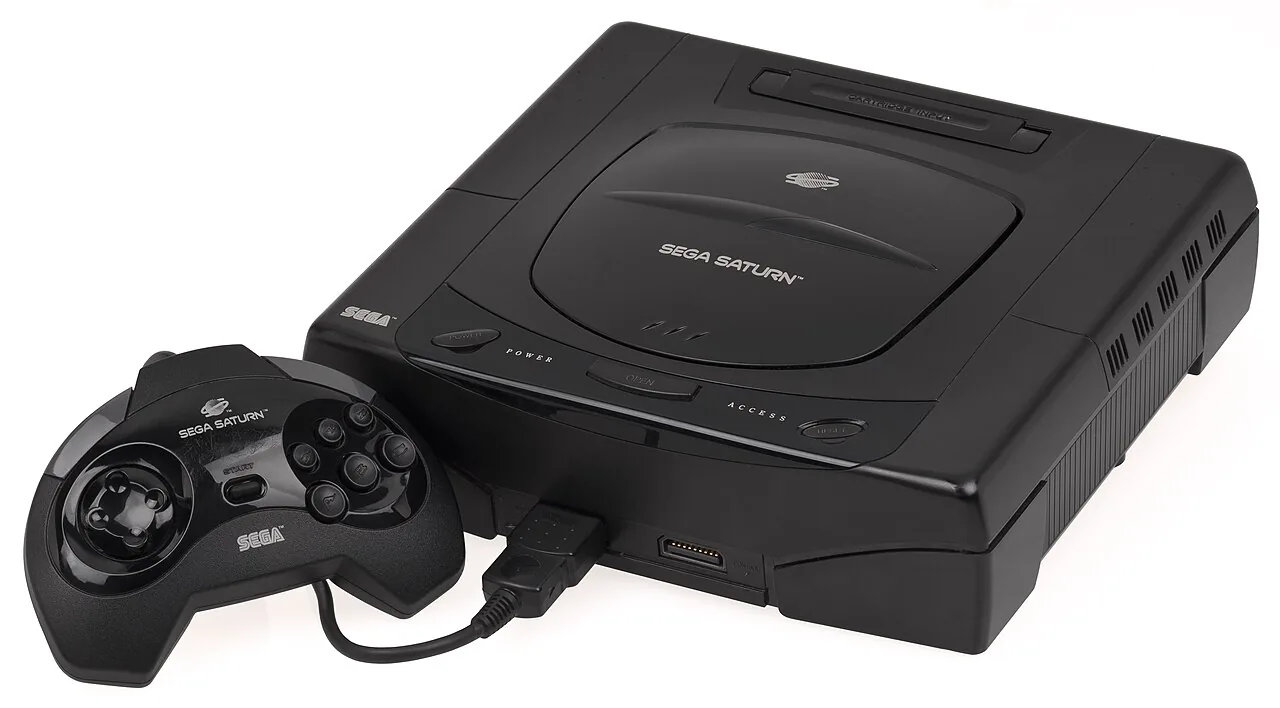
What You Need
- A CD/DVD drive. Any working drive rips Saturn discs; a $25 external USB drive is fine.
- DiscImageCreator — the ripping tool used by the Redump preservation project. It reads every sector carefully, retries on scratches, and writes a
.bin/.cuepair that preserves the CD-audio tracks many Saturn games use. chdman— ships with MAME; losslessly compresses the rip into a single.chd.
The Security Ring Isn’t in the Way
Saturn discs carried a ring of data pressed into the disc that the console read to confirm a genuine pressing — the reason the Saturn resisted copying on its own hardware for years. It matters to hear clearly: that ring is a hardware boot check, not encryption of the game. Your disc’s data is stored in the clear and a PC drive reads it freely, and the OWL player’s emulator core doesn’t require the ring at all — so backing up your own Saturn disc is the same unencrypted, no-circumvention case as a PlayStation 1 CD.
.bin/.cue pair, (3) chdman packs it into one .chd. Diagram: NDEVR.Ripping, Step by Step
- Clean the disc — wipe from the center straight out to the edge with a soft cloth.
- Rip with DiscImageCreator. One command reads the disc to
Game.bin+Game.cue; keep the.cue, it maps the data and audio tracks. - Compress.
chdman createcd -i Game.cue -o Game.chdmakes the single archival file the player loads fastest. - Verify. Check the rip against Redump to confirm a bit-perfect read of your pressing.
Multi-Disc Games
Panzer Dragoon Saga spans four discs; Shining Force III came in scenarios. Rip each disc to its own .chd, then write a plain-text .m3u playlist naming them in order and upload the discs and the playlist together — the player treats the .m3u as the game and handles disc changes at the prompts.
Playing Your Backup
Upload the .chd (or .m3u set) to your OWL media library: the Games collection recognizes it and the Saturn core boots it in the browser, with save states synced across your devices. In CSD mode with client-held decryption keys, game and save payloads remain end-to-end encrypted; private library metadata—including names, types, exact original sizes and source timestamps—is encrypted too.